Managing Cookies
This guide walks through the full lifecycle of a cookie consent configuration — from creation to publishing.
Prerequisites
- You have access to Platform -> Cookies.
- At least one System already exists if you want to create a cookie configuration.
Required Permissions
| Permission Code | Access |
|---|---|
cookies:view | View cookie lists and details |
cookies:create | Create a cookie configuration |
cookies:edit | Edit, request review, publish, or unpublish a cookie configuration |
cookies:delete | Delete a cookie configuration |
cookies:review | Review a submitted cookie configuration |
cookies:approve | Approve a cookie configuration |
Cookies list
Navigate to Platform → Cookies in the sidebar to see all cookie configurations.
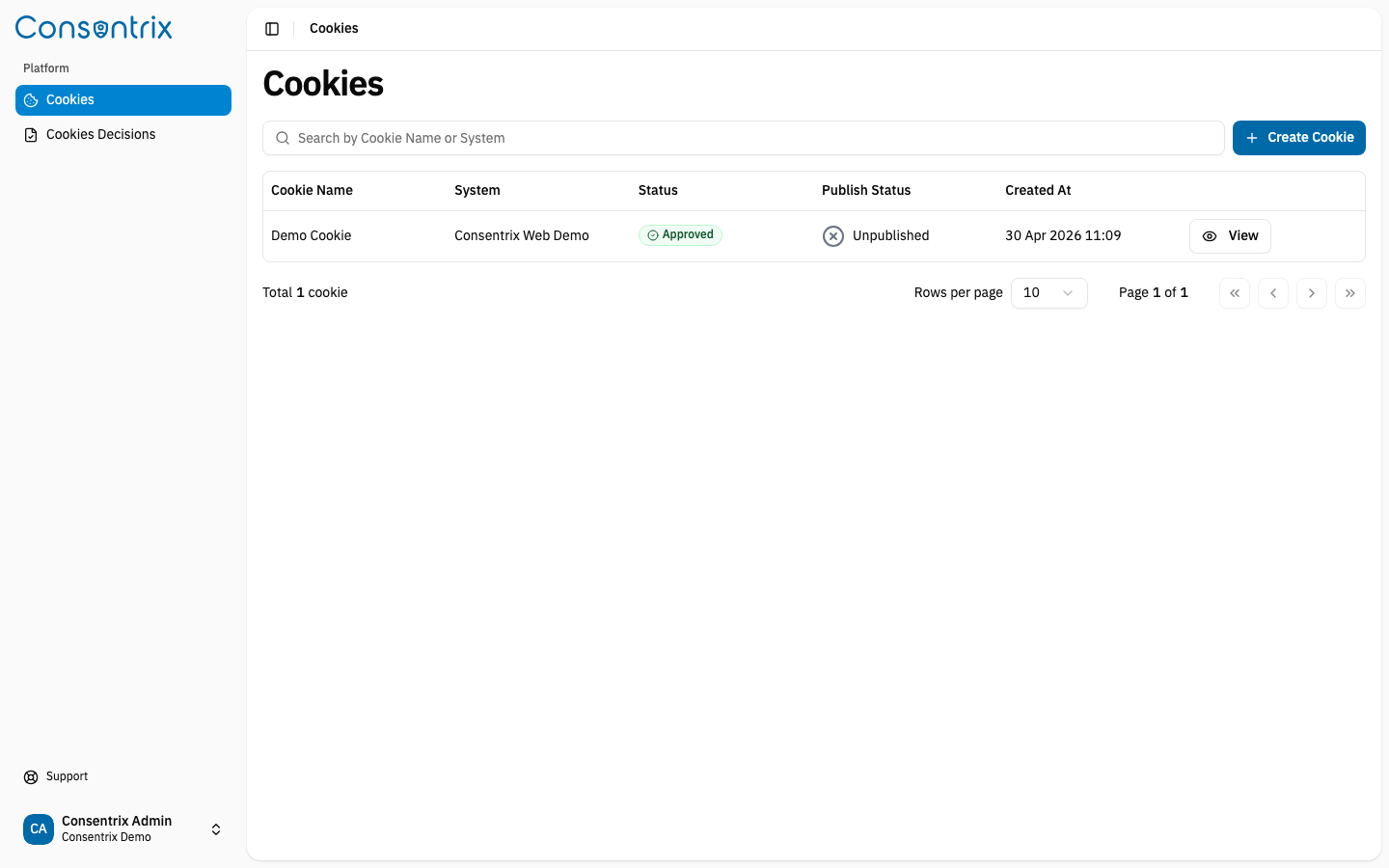
The table displays the following columns:
| Column | Description |
|---|---|
| Cookie Name | The display name of the cookie configuration. |
| System | The system or project the cookie belongs to. |
| Status | Workflow status — Draft, Pending Review, Pending Approval, or Approved. |
| Publish Status | Delivery state — Published or Unpublished. |
| Created At | When the cookie was created. |
Use the Search bar to filter cookies by name or system.
Create a cookie
- Click Create Cookie on the Cookies list page.
- You will see the Create Cookie form with three sections:
- Cookie Information — Basic metadata
- Cookie Banner — The banner shown to visitors
- Privacy Preference — Detailed cookie category settings
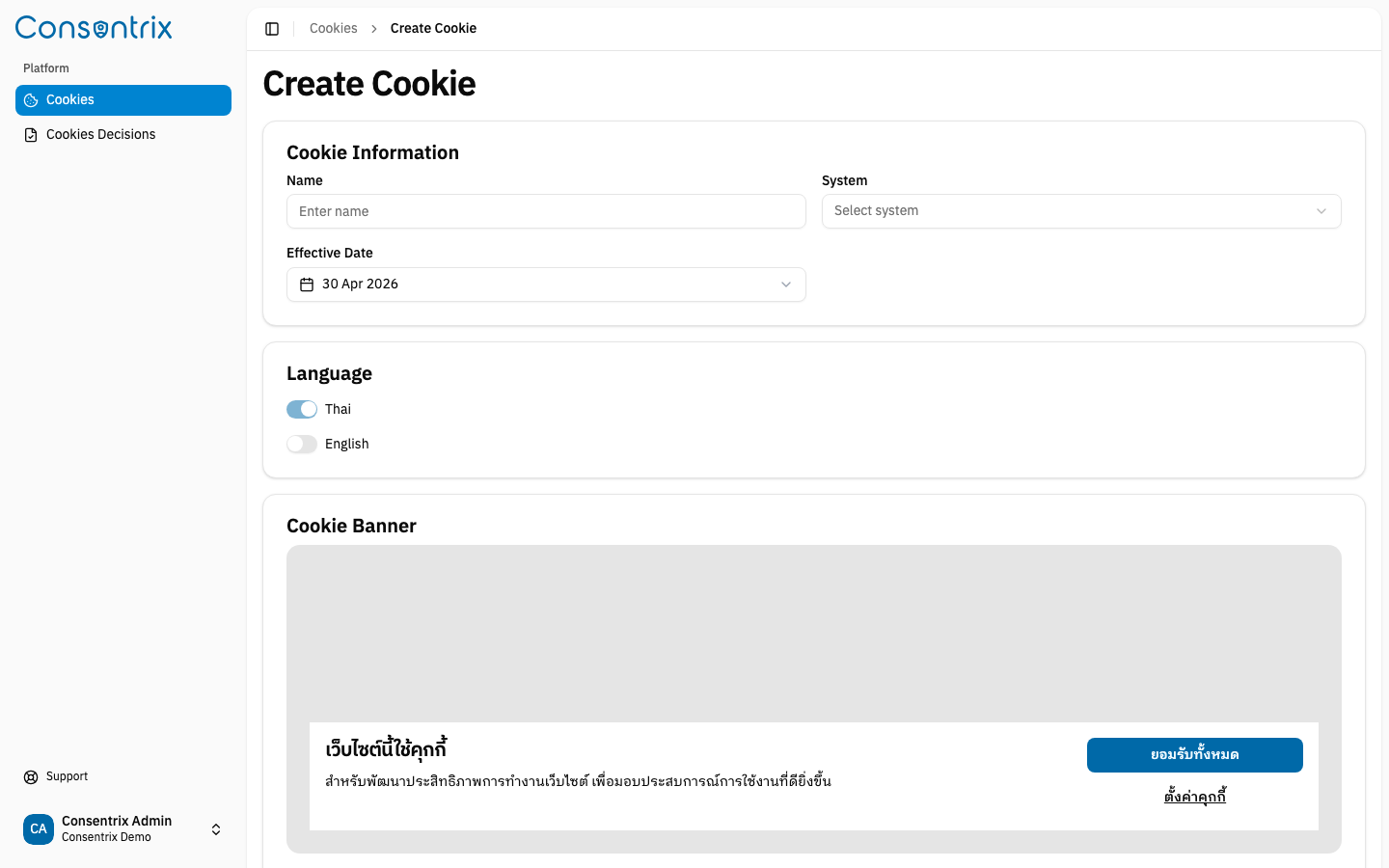
Cookie Information fields
| Field | Required | Description |
|---|---|---|
| Name | Yes | A descriptive name for this cookie configuration. |
| System | Yes | Select the system or project from the dropdown. |
| Effective Date | Yes | The date this cookie configuration takes effect. Defaults to today. |
After filling in the Cookie Information, configure the Cookie Banner and Privacy Preference sections.
View cookie details
Click View on any cookie row to open the cookie detail page. The available actions depend on the cookie's current status.
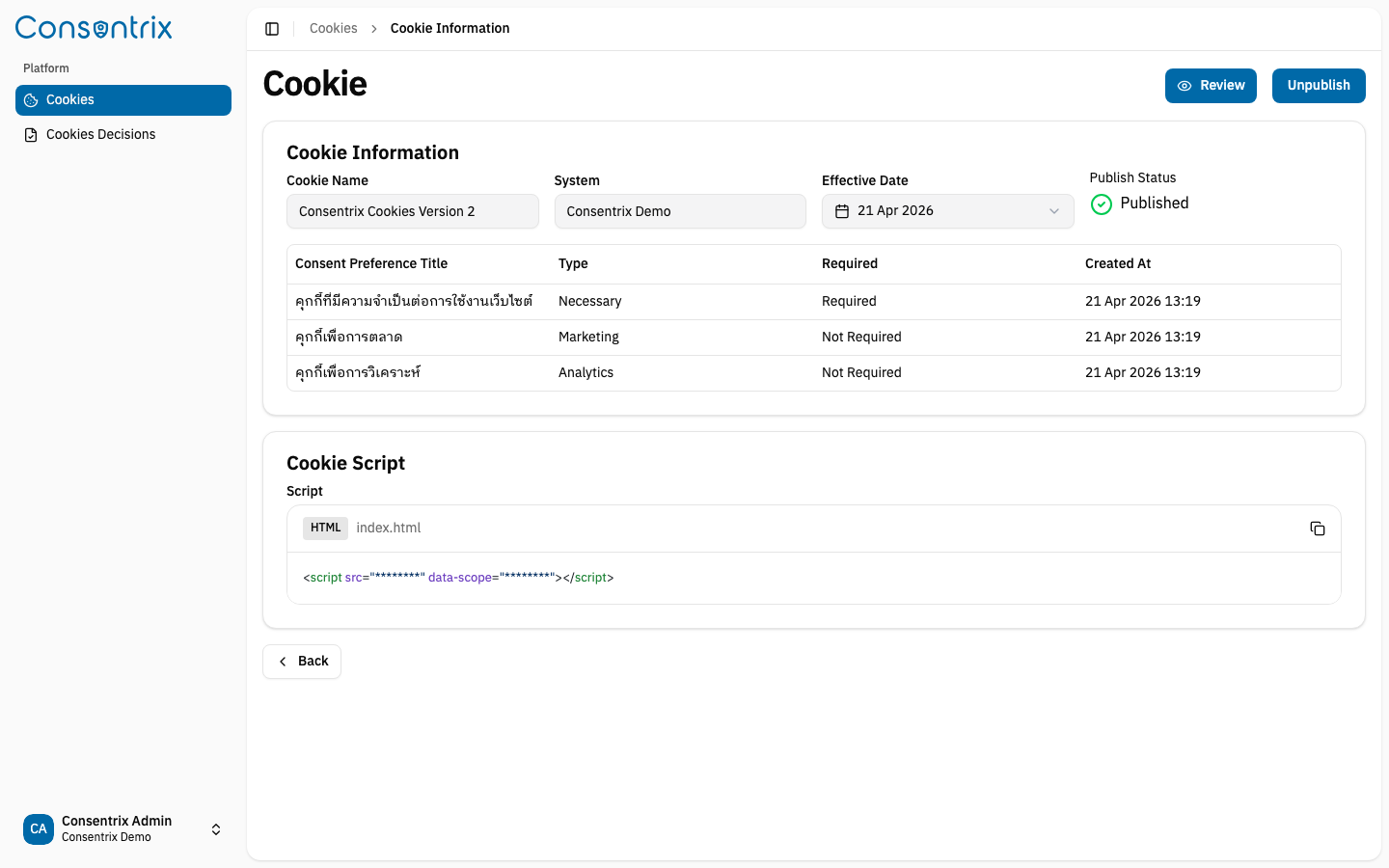
Status overview
| Status | Description | Available Actions |
|---|---|---|
| Draft | Initial state after creation. The cookie can be freely edited or deleted. | Edit, Delete, Submit for Review |
| Pending Review | Submitted and waiting for a Reviewer to evaluate. | Reviewer: Approve (direct or next step), Return to Draft |
| Pending Approval | Passed review and waiting for an Approver to finalize. | Approver: Approve, Return to Draft |
| Approved | Configuration is approved and ready to publish. | Publish |
Publish state is tracked separately from workflow status:
| Publish State | Meaning | Available Actions |
|---|---|---|
| Unpublished | The cookie is not yet serving on your website. | Continue workflow actions based on the current status |
| Published | The cookie script is live and can be embedded on your website. | Unpublish |
System-level rules
- Latest cookie wins — When multiple cookies exist in the same system, the most recently created one is always used.
- Auto-unpublish — Publishing a cookie in a system automatically unpublishes all other cookies in that system.
- Effective date — A published cookie only starts serving the banner on or after its configured effective date.
Publish and Unpublish
Publish
Once a cookie has Approved status:
- Open the cookie detail page.
- Click Publish.
After publishing:
- The Cookie Script section appears with an embeddable HTML snippet. See Script Integration for details.
- Any other Published cookie in the same system is automatically unpublished.
- The banner starts serving to visitors on the cookie's effective date.
Unpublish
To take a cookie offline:
- Open the cookie detail page.
- Click Unpublish.
The cookie script stops serving the consent banner immediately. The cookie remains in Approved status and can be re-published at any time.
Related Links
- Cookie Consent Overview — Understand the Cookie Consent feature
- Cookie Banner — Configure the cookie banner
- Privacy Preference — Configure the privacy preference panel
- Export Decisions — Export consent decisions