User Management
The User Management feature allows administrators to create, view, edit, and delete users within the Consentrix platform. Each user can be assigned one or more roles that define their access permissions across the system.
Prerequisites
Before you begin, ensure you have:
- An active Consentrix Account.
- Appropriate permissions to manage users (see Required Permissions).
- At least one role created (required when creating users) — see Roles and Permissions.
Required Permissions
| Permission Code | Access |
|---|---|
users:view | View users |
users:create | Create new users |
users:edit | Edit user information and roles |
users:delete | Delete users |
Key Features
| Feature | Description |
|---|---|
| Create User | Add a new user with email, name, password, and role(s) |
| View User | View user details including assigned roles |
| Edit User | Modify user name and role assignments |
| Delete User | Remove a user from the system |
| Search | Filter users by email |
Navigate to User Management
- Log in to the Consentrix platform.
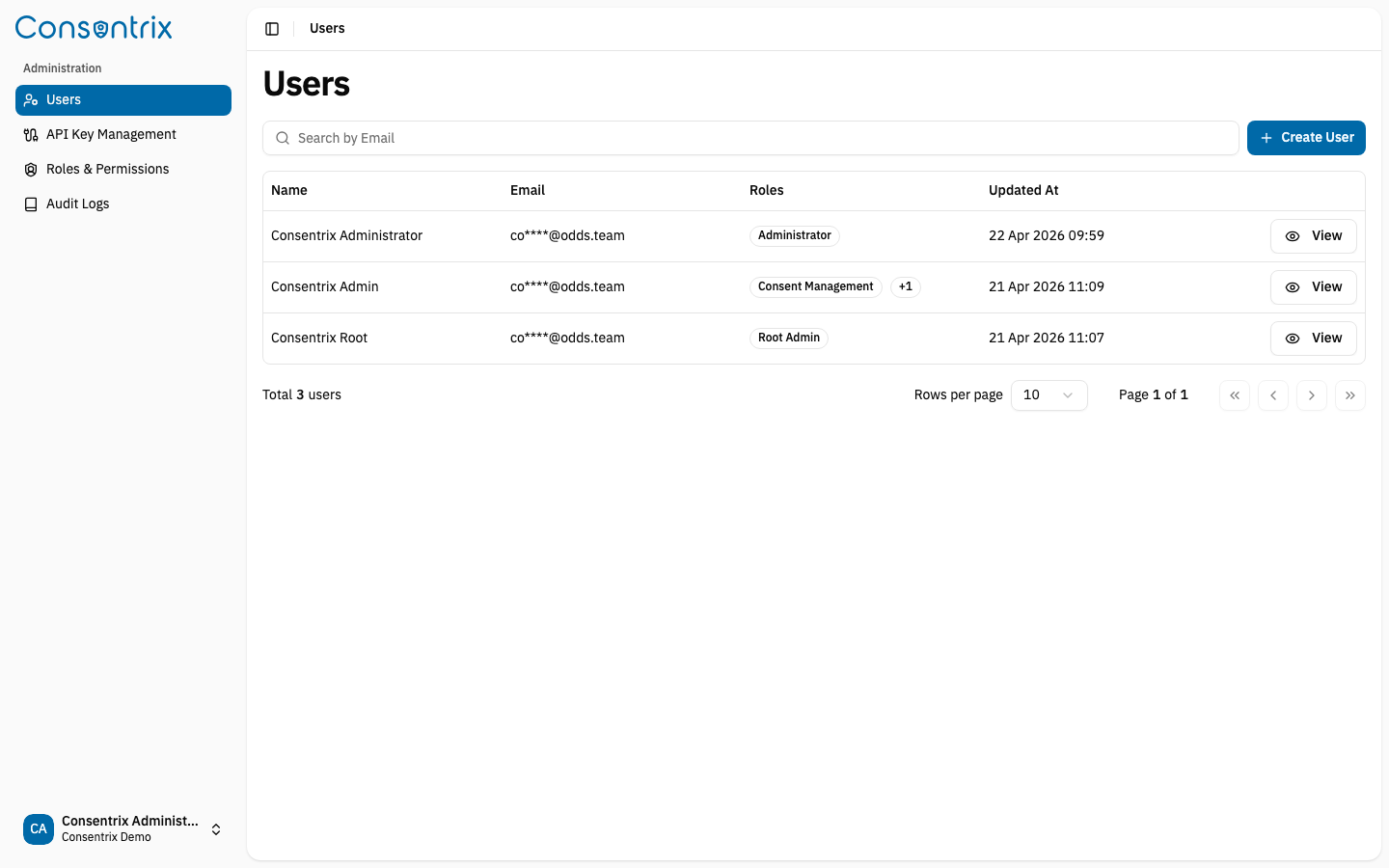
- Go to Administration > Users.
You will see a list of all users with their first name, last name, email, assigned roles, and last updated timestamp.
Create a New User
Creating a user involves providing their basic information and assigning at least one role.
Steps
- On the Users page, click Create User.
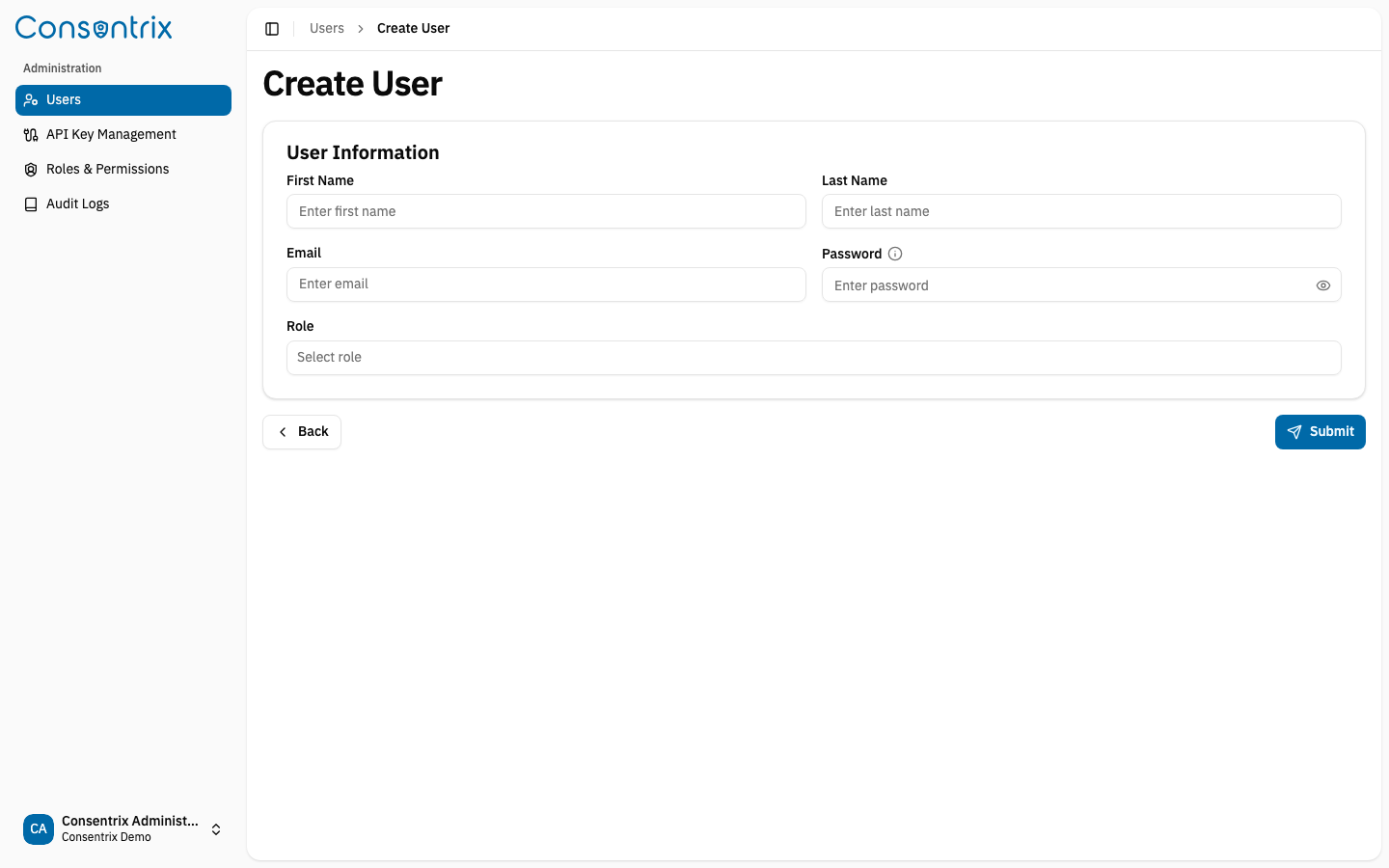
- On the Create User page, fill in the required information:
- First Name: Enter the user's first name.
- Last Name: Enter the user's last name.
- Email: Enter a valid email address (must be unique).
- Password: Enter a password that meets the password policy requirements.
- Role: Select at least one role from the dropdown (multi-select).
- Click Submit.
- In the confirmation dialog, click Confirm.
- You will be redirected to the User Detail page.
Password Policy
Passwords must meet the following requirements:
- At least 8 characters long
- Contains at least one uppercase letter
- Contains at least one lowercase letter
- Contains at least one number
- Contains at least one special character
Tip: Hover over the password field to see the password policy tooltip with real-time validation feedback.
No Roles Available
If no roles exist in the system, you will see a dialog indicating that roles must be created first. Click Create Role to navigate to the Roles and Permissions page.
View User Details
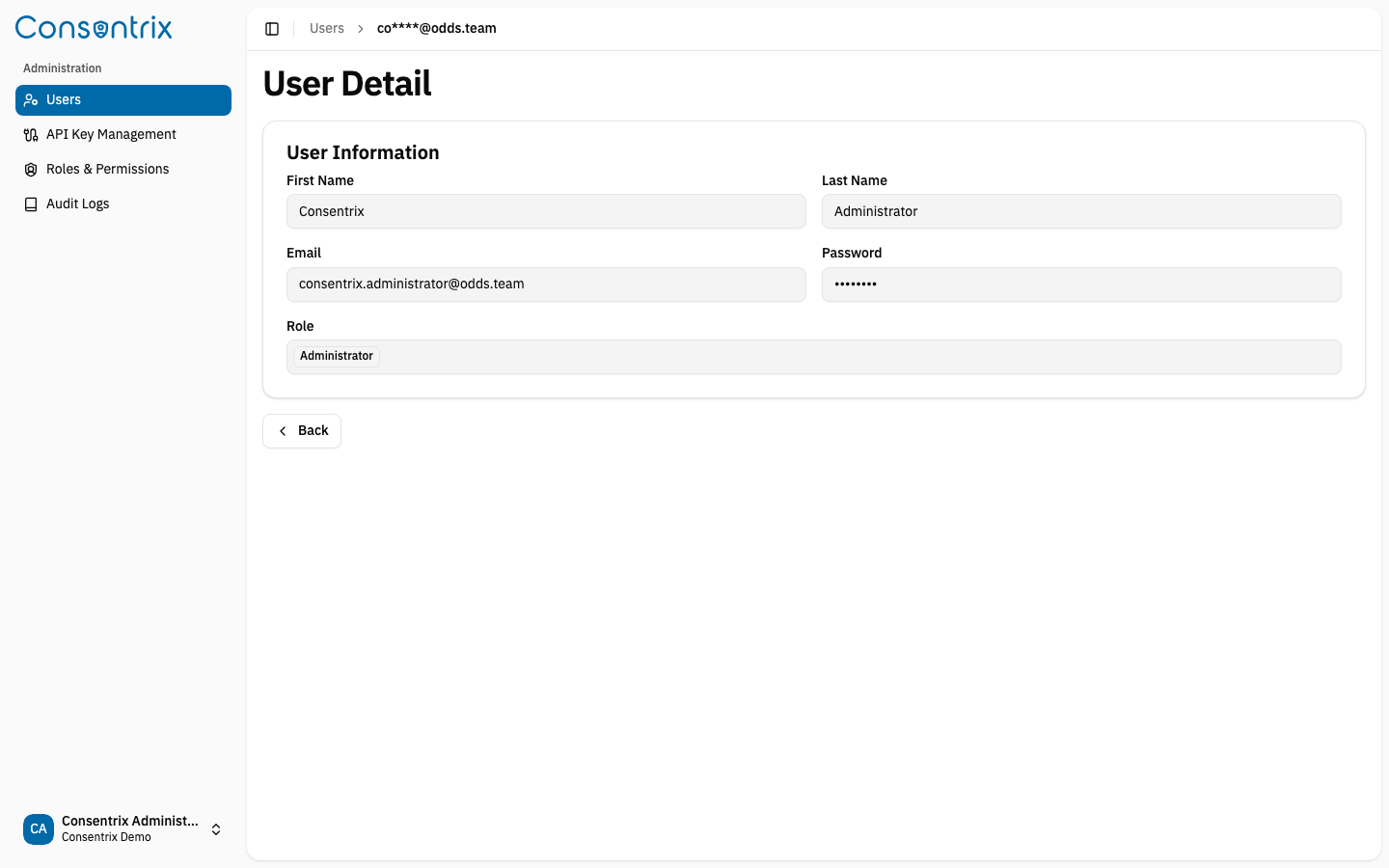
The User Detail page displays read-only information about a user:
| Field | Description |
|---|---|
| First Name | User's first name |
| Last Name | User's last name |
| User's email address (cannot be changed) | |
| Password | Displayed as masked (********) |
| Role | All roles assigned to the user |
Edit and Delete Actions
Depending on your permissions and the user type, you may see:
- Edit Button: Click to edit the user's name and roles (not available for IAM users or your own account).
- Delete Button: Click to delete the user (not available for IAM users or your own account).
Note: IAM users (users authenticated via Identity & Access Management) cannot be edited or deleted from the platform. Their information is managed externally.
Edit a User
You can modify a user's first name, last name, and role assignments.
Steps
- From the Users list, click View on the user you want to edit.
- On the User Detail page, click Edit.
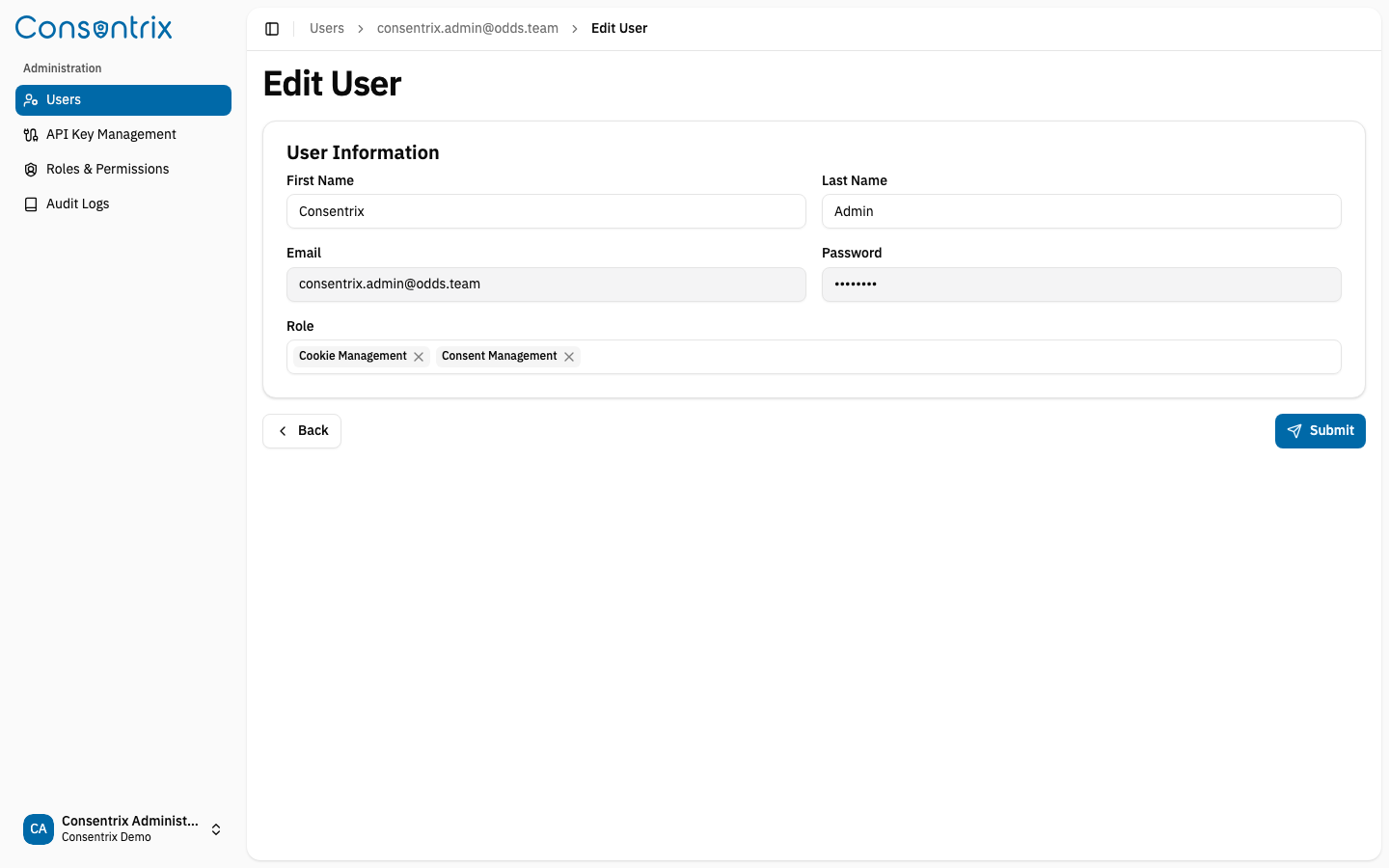
- On the Edit User page:
- Modify the First Name as needed.
- Modify the Last Name as needed.
- Email cannot be changed (disabled field).
- Password cannot be changed from this page (disabled field).
- Modify Role assignments by selecting/deselecting roles.
- Click Submit.
- In the confirmation dialog, click Confirm.
- You will be redirected back to the User Detail page.
Editing Restrictions
- Cannot edit IAM users: Users authenticated via IAM cannot be modified.
- Cannot edit your own account: To prevent accidental lockout, you cannot edit your own user information.
- Email cannot be changed: If a different email is needed, create a new user account.
Delete a User
Deleting a user permanently removes them from the system.
Steps
- From the User Detail page, click Delete.
- A confirmation dialog will appear asking for confirmation.
- Click Delete to confirm.
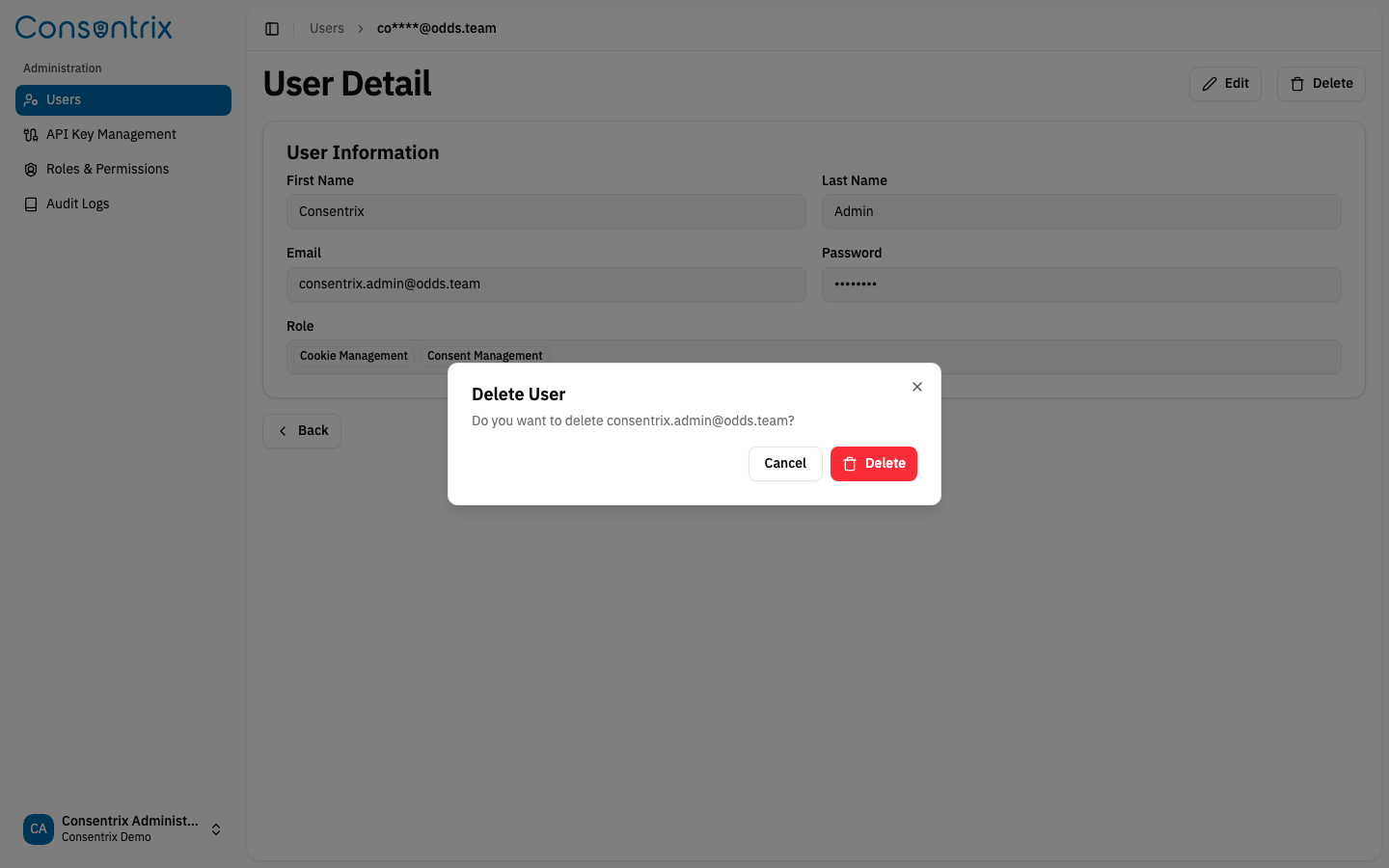
Warning: This action cannot be undone. Ensure the user is no longer needed before deletion.
Deletion Restrictions
- Cannot delete IAM users: IAM users are managed externally and cannot be deleted.
- Cannot delete your own account: To prevent accidental lockout, you cannot delete your own account.
Search for Users
You can filter the user list by email:
- In the search bar at the top of the Users page, enter part or all of an email address.
- The table will filter to show matching users.
- Clear the search to view all users.
Best Practices
User Naming Conventions
Use consistent naming for easy identification:
- Use actual first and last names
- Avoid special characters in names
- Ensure email addresses follow your organization's convention
Role Assignment
- Principle of Least Privilege: Assign only the roles necessary for the user's responsibilities.
- Multiple Roles: Users can have multiple roles if they perform different functions.
- Regular Reviews: Periodically review user roles and remove unnecessary access.
Security
- Strong Passwords: Ensure all users create strong passwords meeting the password policy.
- IAM Integration: For better security management, consider using IAM authentication for users.
- Audit Trail: Use the Audit Log feature to track user management activities.
Troubleshooting
"Create User" button is not visible
- Your user account does not have the
users:createpermission. Contact your administrator.
Cannot create user - "No roles available"
- At least one role must exist before creating users. Create a role first via Administration > Roles and Permissions.
Email already in use
- Each email must be unique. Use a different email or edit the existing user.
Password does not meet requirements
- Ensure the password contains uppercase, lowercase, numbers, and special characters (minimum 8 characters).
Cannot edit or delete a user
- The user may be an IAM user (managed externally).
- You may be trying to edit/delete your own account (self-protection).
- Your account may not have the required permissions (
users:editorusers:delete).
"Please enter role" error
- At least one role must be selected when creating or editing a user.
Related Links
- User Management Guide — Manage users in the portal
- Role & Permission Guide — Create and manage roles to assign to users
- API Key Management — Manage API keys for system integration
- Audit Log — Track user management activities