Audit Log
The Audit Log feature provides a comprehensive trail of all user activities within the Consentrix platform. Administrators can filter and export audit logs for compliance monitoring, troubleshooting, and security auditing purposes.
Prerequisites
Before you begin, ensure you have:
- An active Consentrix Account.
- The
audit_logs:viewpermission to access and export audit logs.
Required Permissions
| Permission Code | Access |
|---|---|
audit_logs:view | View and export audit logs |
Key Features
| Feature | Description |
|---|---|
| Date Range Filter | Filter logs by start and end date |
| Role Filter | Filter by user role(s) |
| Action Filter | Filter by action type(s) |
| CSV Export | Export filtered logs to CSV format |
Navigate to Audit Log
- Log in to the Consentrix platform.
- Go to Administration > Audit Log.
You will see the Audit Log page with filter options and an Export button.
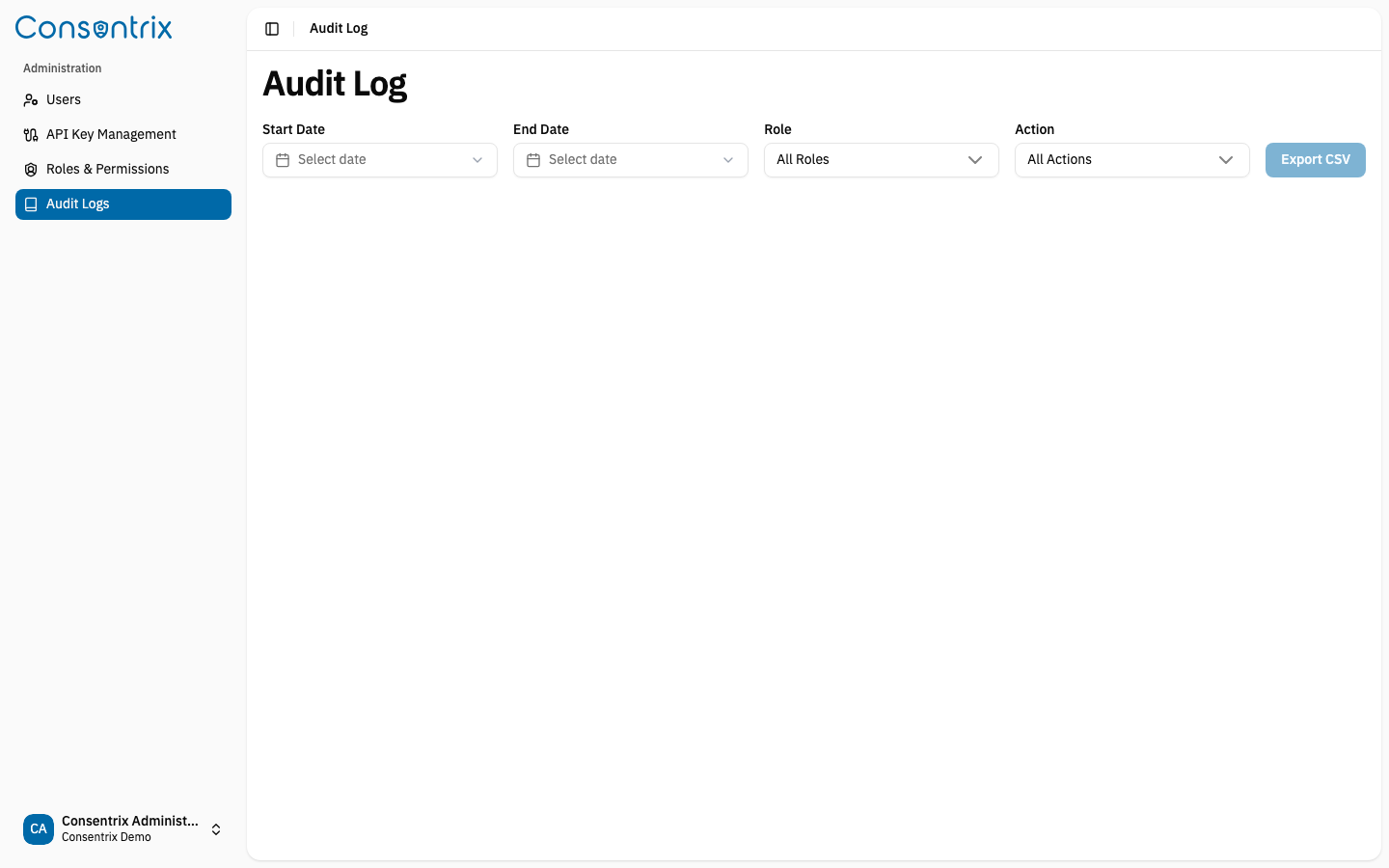
Export Audit Logs
Audit logs are exported as CSV files. You can apply filters to narrow down the results before exporting.
Step 1: Select Date Range
- Start Date: Click the date picker and select a start date.
- End Date: Click the date picker and select an end date.
Note: Dates are displayed in Asia/Bangkok timezone. The end date cannot exceed the current date.
Step 2: Filter by Role (Optional)
- Click the Role dropdown.
- Select one or more roles to filter by (e.g.,
CUSTOMER_SERVICE,ADMIN,READ_ONLY). - Click outside the dropdown to confirm your selection.
The trigger label will show:
- "All Roles" if no filter is applied
- The role name if one role is selected
- The number of roles selected (e.g., "3 Roles")
Step 3: Filter by Action (Optional)
- Click the Action dropdown.
- Select one or more action types to filter by (e.g.,
CONSENT_TEMPLATE_CREATED,USER_UPDATED,API_KEY_GENERATED). - Click outside the dropdown to confirm your selection.
The trigger label will show:
- "All Actions" if no filter is applied
- The action name if one action is selected
- The number of actions selected (e.g., "5 Actions")
Step 4: Export CSV
- After applying your desired filters, click Export CSV.
- The button will display "Exporting..." while processing.
- The filtered audit log CSV file will be downloaded to your computer.
Audit Log CSV Format
The exported CSV file contains the following columns:
| Column | Description |
|---|---|
| Timestamp | When the action occurred (ISO 8601 format) |
| User | The user who performed the action |
| Role | The role of the user at the time of the action |
| Action | The type of action performed |
| Resource | The resource that was affected |
| Details | Additional details about the action (JSON format) |
Common Use Cases
Compliance Auditing
Export all audit logs for a specific date range to provide to compliance auditors.
Troubleshooting
Filter by action type to investigate specific events (e.g., all template creation activities).
User Activity Review
Filter by role to review activities performed by users with specific permissions.
Security Investigation
Export logs following a security incident to identify affected resources and user actions.
Best Practices
- Regular Exports: Export audit logs periodically and store them securely for long-term retention.
- Date Range Limits: For large date ranges, consider breaking exports into smaller chunks (e.g., monthly).
- Secure Storage: Store exported CSV files in a secure location with appropriate access controls.
- Automated Backups: Consider setting up automated processes to regularly export and archive audit logs.
Troubleshooting
"Export CSV" button is disabled or not visible
- Your user account does not have the
audit_logs:viewpermission. Contact your administrator.
No data in exported CSV
- Verify that your filter criteria (date range, role, action) match the data you expect.
- Try exporting with "All Roles" and "All Actions" to confirm data exists.
Export takes a long time
- Large date ranges or broad filters may result in large exports. Consider narrowing your filter criteria.
Related Links
- Audit Log Guide — Track platform activities
- API Key Management — API key activities are logged in the audit log
- Role & Permission Guide — Role management activities are logged in the audit log
- User Management — User management activities are logged in the audit log